Docker container security: 20 checks, ordered by what they actually prevent
Practical hardening steps for production container deployments
A default docker run gives you root, a writable filesystem, most capabilities and no resource ceiling. Here is every hardening flag worth applying — with the four that block host compromise separated from the sixteen that are ordinary hardening.
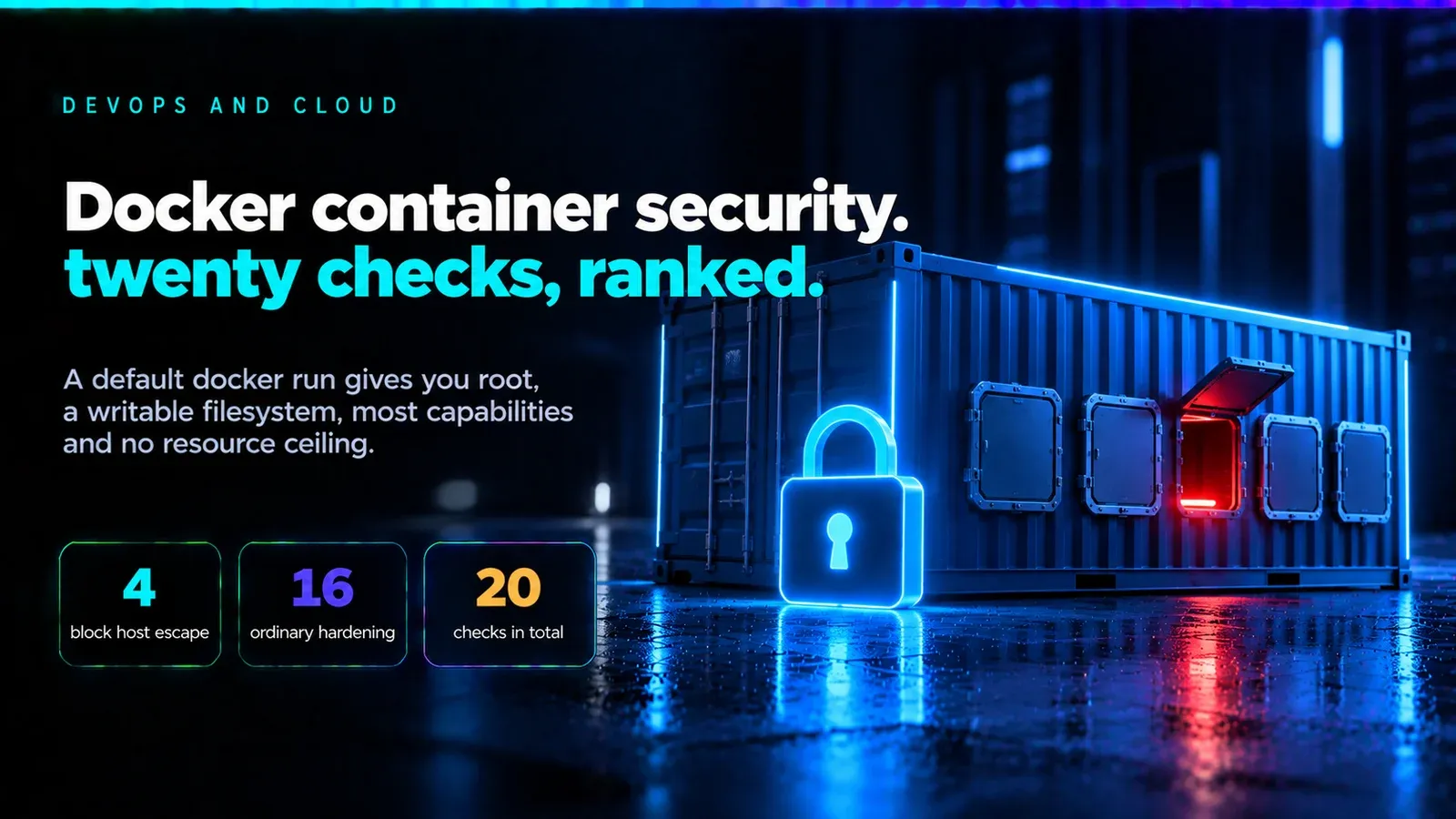
Most container security advice is a list of flags. The flags are real, but their value varies enormously — a few close off entire categories of compromise, and the rest are marginal hardening you can adopt at leisure. This is the full list, ordered by what it actually buys you, with the commands to apply and verify each one.
Assume a default docker run with no flags. That container runs as root, with a writable root filesystem, most Linux capabilities, no resource ceiling, and no restriction on what it can reach on your network. Every item below closes part of that gap.
The four that matter most
If you do nothing else, do these. Each one blocks a path from "attacker has code execution in a container" to "attacker owns the host".
1. Never mount the Docker socket
# This hands over the host. Do not do it.
docker run -v /var/run/docker.sock:/var/run/docker.sock myapp
Write access to the socket is root on the host, with no exploit required — a process that can talk to it can start a privileged container that mounts /. It is not a container escape; it is the documented API working as designed. CI runners and monitoring agents are the usual reason it gets mounted. Use a socket proxy that allowlists specific endpoints, or a rootless/daemonless builder such as Buildah or Kaniko, instead.
2. Never use --privileged
docker run --privileged myapp # all capabilities, all devices, no seccompIt disables essentially every isolation boundary at once. When something genuinely needs one capability, grant that one:
docker run --cap-drop=ALL --cap-add=NET_ADMIN myapp3. Do not run as root inside the container
Container root is host UID 0 unless user namespaces are active. Combined with a writable mount or a kernel bug, that is the difference between a contained incident and a host compromise.
FROM node:22-alpine
RUN addgroup -S app && adduser -S app -G app
WORKDIR /app
COPY --chown=app:app . .
USER app
Verify, rather than assume — a base image can reset USER:
docker run --rm myapp id
# uid=1001(app) gid=1001(app)   <- not uid=0
Enforce it at runtime too, so an image that lost its USER line still cannot run as root:
docker run --user 1001:1001 myapp4. Keep secrets out of image layers
Every ARG and ENV is recorded in image metadata, and a file deleted in a later layer is still present in the earlier one. Anyone who can pull the image can read both.
docker history --no-trunc myapp | grep -iE 'token|secret|key|password'Use BuildKit's build-time secrets, which are mounted for one command and never written to a layer:
RUN --mount=type=secret,id=npmrc,target=/root/.npmrc npm cidocker build --secret id=npmrc,src=$HOME/.npmrc .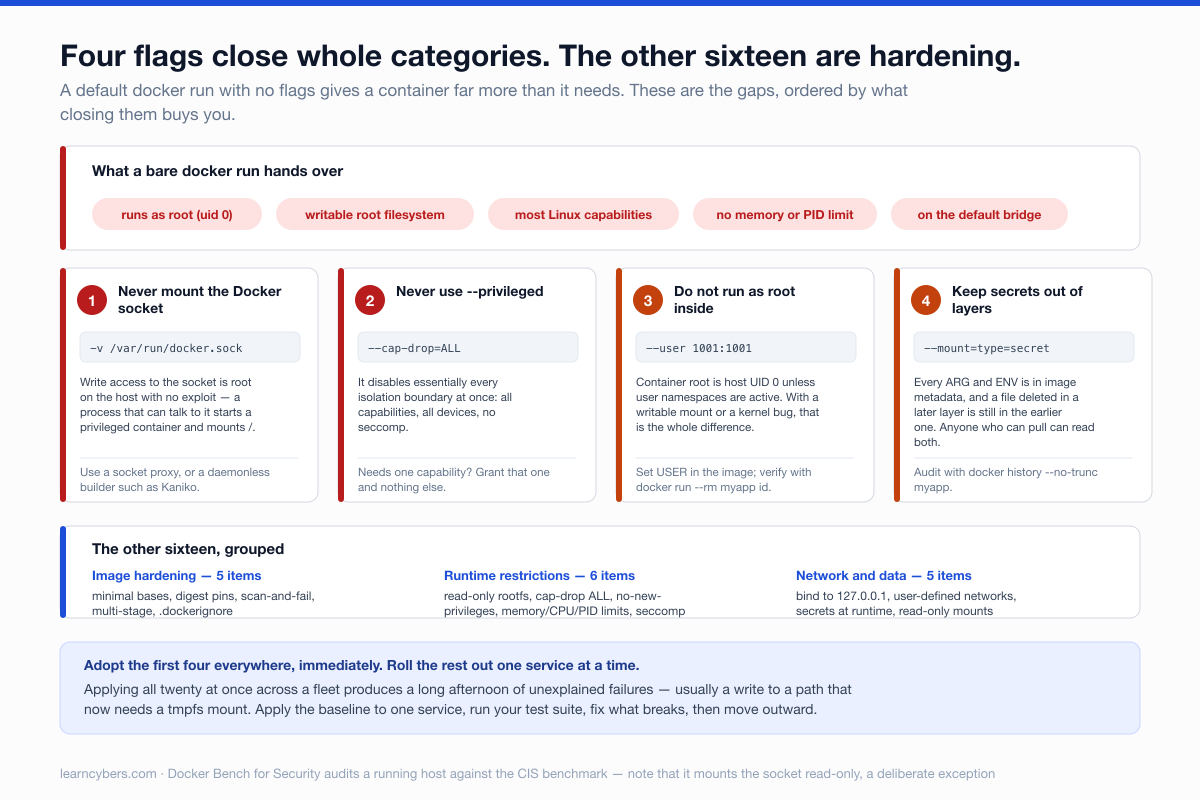
Image hardening
5. Use minimal base images
Alpine images run roughly 5–50MB and distroless smaller still, against 200–800MB for a full distribution base. The security argument is not the size but the package count — a shell, a package manager and a set of system utilities the attacker gets for free are all absent from distroless.
FROM gcr.io/distroless/nodejs22-debian12The tradeoff is real: no shell means no docker exec debugging. Keep a :debug variant for non-production if you need it.
6. Pin by digest, not by tag
:latest is the obvious mistake; :22-alpine is the subtler one, because that tag is reassigned to new builds. For reproducibility, pin the digest:
FROM node:22-alpine@sha256:9fcc1a6da2b9eff...A digest pin means the build is byte-identical every time — and that you must deliberately bump it to get security patches. Pair it with an automated bump (Dependabot, Renovate) or the pin quietly becomes a stale base image, which is a worse problem than the one it solved.
7. Scan images, and fail the build
trivy image --severity HIGH,CRITICAL --exit-code 1 myapp:latestA scan that reports but does not block is a report nobody reads. Fail on HIGH and CRITICAL, and maintain an explicit, dated, justified allowlist (.trivyignore) for the ones you have accepted — expiry dates matter more than the entries.
8. Use multi-stage builds
Compilers, headers and dev dependencies belong in the build stage, not the shipped image.
FROM golang:1.23 AS build
WORKDIR /src
COPY . .
RUN CGO_ENABLED=0 go build -o /app ./cmd/server

FROM gcr.io/distroless/static-debian12
COPY --from=build /app /app
USER 65532:65532
ENTRYPOINT ["/app"]
9. Write a .dockerignore
Without one, COPY . . ships your .git directory — including every secret ever committed and then removed — plus .env files and local credentials.
.git
.env*
node_modules
*.pem
*.key
**/.terraform
Runtime restrictions
10. Read-only root filesystem
docker run --read-only --tmpfs /tmp:rw,noexec,nosuid myappThis blocks the common post-exploitation step of dropping a tool on disk. Give writable paths explicitly as tmpfs mounts; noexec on those mounts is what stops the dropped file being run.
11. Drop all capabilities, add back what is needed
docker run --cap-drop=ALL myappThe default set includes CHOWN, SETUID, SETGID, NET_RAW and others that a typical web application never uses. NET_RAW in particular enables ARP spoofing against other containers on the same bridge network.
Binding a port below 1024 is the usual reason people keep capabilities. Don't — listen on 8080 inside and publish 80 outside.
12. no-new-privileges
docker run --security-opt=no-new-privileges myappPrevents a process gaining privileges through a setuid binary, which is the standard route from an unprivileged container user back to container root.
13. Set resource limits
docker run --memory=512m --cpus=1.0 --pids-limit=200 myappAn unbounded container can exhaust host memory and take down everything on the box. --pids-limit is the one most often forgotten and the one that stops a fork bomb.
14. Keep seccomp and AppArmor on
Docker's default seccomp profile blocks around 44 syscalls, several of them used in published escapes. It is on by default — the item here is not turning it off:
docker run --security-opt seccomp=unconfined myapp # don'tCheck what a running container actually has:
docker inspect --format '{{.HostConfig.SecurityOpt}}' mycontainer15. Consider the rootless daemon
Rootless mode runs the daemon itself as an unprivileged user, so a full container escape lands as a normal user rather than root. It costs you some networking performance and a few features. For multi-tenant or untrusted workloads it is worth the tradeoff; Podman takes the same approach by default.
Network and data
16. Do not publish to 0.0.0.0 by habit
docker run -p 5432:5432 postgres          # reachable from the network
docker run -p 127.0.0.1:5432:5432 postgres # local only
Worth knowing: Docker writes its own iptables rules, and a published port can be reachable even when UFW says the port is blocked. Verify from another machine rather than trusting the firewall's summary.
nmap -p 5432 your-host-ip17. Use user-defined networks, not the default bridge
Every container on the default bridge can reach every other one. A user-defined network per application stack gives you segmentation and DNS by container name.
docker network create backend
docker run --network backend --name db postgres
docker run --network backend --name api myapp   # db reachable; nothing else is
18. Pass secrets at runtime, not in ENV
Environment variables appear in docker inspect, in child process environments, and frequently in crash dumps and log aggregators. Mount a file instead, or use your orchestrator's secret mechanism.
docker run -v /run/secrets/db:/run/secrets/db:ro myapp19. Mount volumes read-only where possible
docker run -v /srv/config:/etc/app:ro myappAnd never bind-mount host paths such as /, /etc or /var/run into a container.
20. Log, and keep the daemon patched
Container runtime CVEs are real and exploited — runc and containerd have both had escapes. Patch the daemon on the same schedule as the kernel. Cap log size so a chatty container cannot fill the disk:
docker run --log-opt max-size=10m --log-opt max-file=3 myappChecking what you already run
Docker Bench for Security audits a running host against the CIS Docker Benchmark and will tell you which of the above are missing:
docker run --rm --net host --pid host --userns host --cap-add audit_control \
  -v /var/lib:/var/lib:ro -v /var/run/docker.sock:/var/run/docker.sock:ro \
  docker/docker-bench-security
Note that this tool itself mounts the socket — read-only, on a host you control, for a one-off audit. It is a reasonable exception, and worth recognising as one.
A compose baseline
services:
  api:
    image: myapp@sha256:9fcc1a6da2b9eff...
    user: "1001:1001"
    read_only: true
    tmpfs:
      - /tmp:rw,noexec,nosuid
    cap_drop: [ALL]
    security_opt:
      - no-new-privileges:true
    mem_limit: 512m
    pids_limit: 200
    networks: [backend]
    ports:
      - "127.0.0.1:8080:8080"
    logging:
      options: { max-size: "10m", max-file: "3" }
Apply it to one service, run your test suite, and fix what breaks — usually a write to a path that now needs a tmpfs mount. Then roll it outward. Adopting all twenty at once across a fleet produces a long afternoon of unexplained failures; adopting the first four everywhere, immediately, is the higher-value move.
Flags and defaults change between Docker releases. Check the current documentation for your version before relying on a default, and test the restrictive settings in staging first.