Fix any Git mistake: reset, revert, rebase and cherry-pick, by symptom
Stop panicking when Git goes wrong — here is exactly how to fix it
One question settles most Git accidents: has it been pushed? Organised by what went wrong, with the three-trees model that makes reset's three flags obvious and a table of what each command touches.

Git rarely destroys anything. Almost every mistake is recoverable, and the hard part is knowing which of several similar-sounding commands applies to your situation.
One question settles most of it:
Has the commit been pushed? If not, you may rewrite history freely — reset, rebase, amend are all fair game. If it has, rewriting forces everyone else to repair their clone, so you undo forward with revert instead.
That rule covers perhaps ninety per cent of cases. The rest of this is the detail behind it, organised by what actually went wrong.
The three trees, and why reset has three flags
git reset --soft, --mixed and --hard confuse people because the documentation describes them in terms of Git's internals rather than what you see. The mental model that makes them obvious is that Git manages three separate things at once.
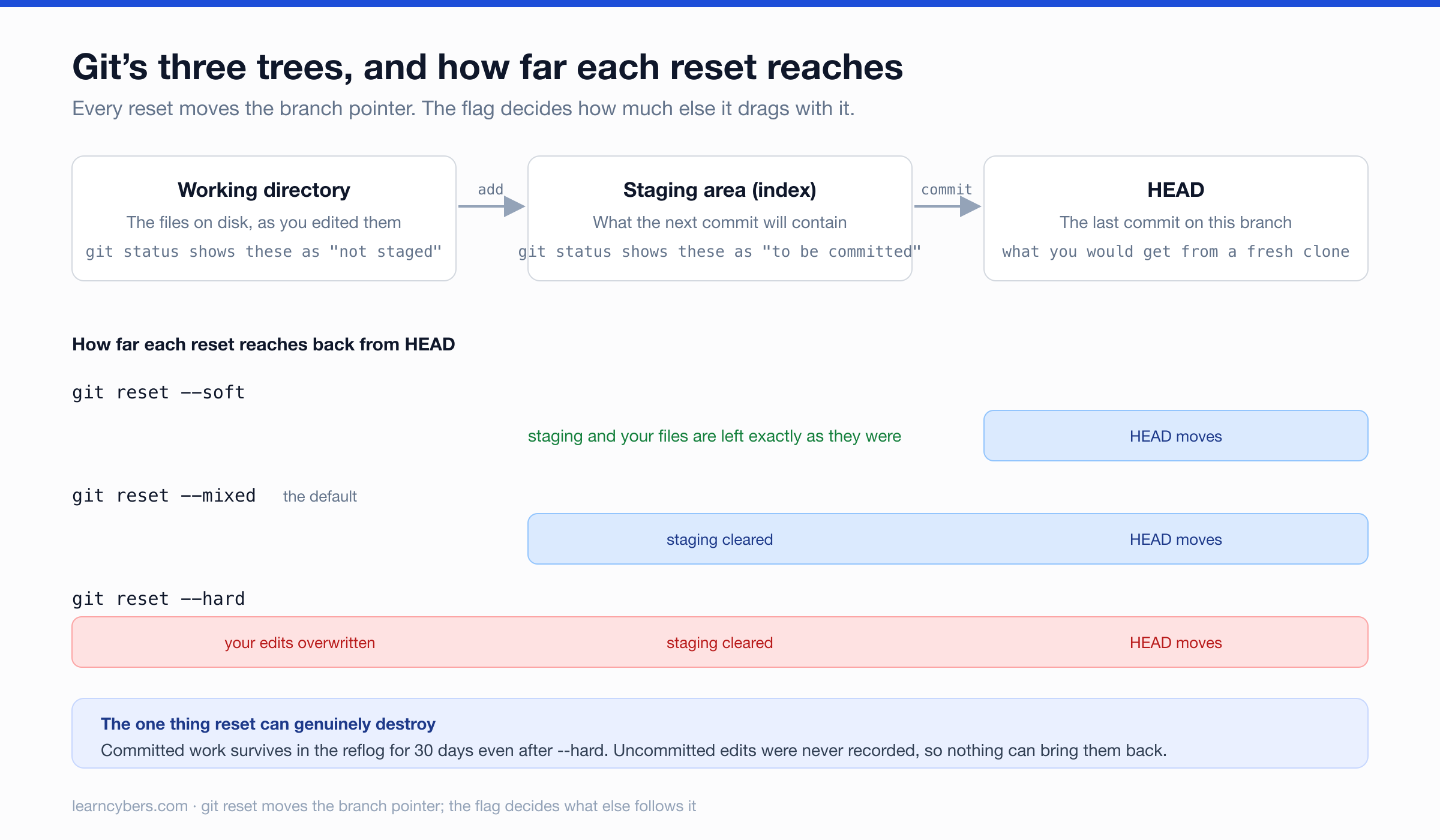
Every reset moves the branch pointer back. The flag decides how many of the other two trees come with it:
--softmoves the branch pointer and stops. Your staged changes and your edited files are untouched, so the work from the undone commit is sitting staged, ready to re-commit. This is the one you usually want.--mixed(the default) also clears the staging area. The work is still in your files, just no longer staged.--hardalso overwrites your files. The work is gone from your working directory.
Once that clicks, reset stops being frightening. And note what even --hard cannot destroy: a committed change survives in the reflog. What --hard destroys irrecoverably is uncommitted work, because that was never recorded anywhere.
Which command touches what
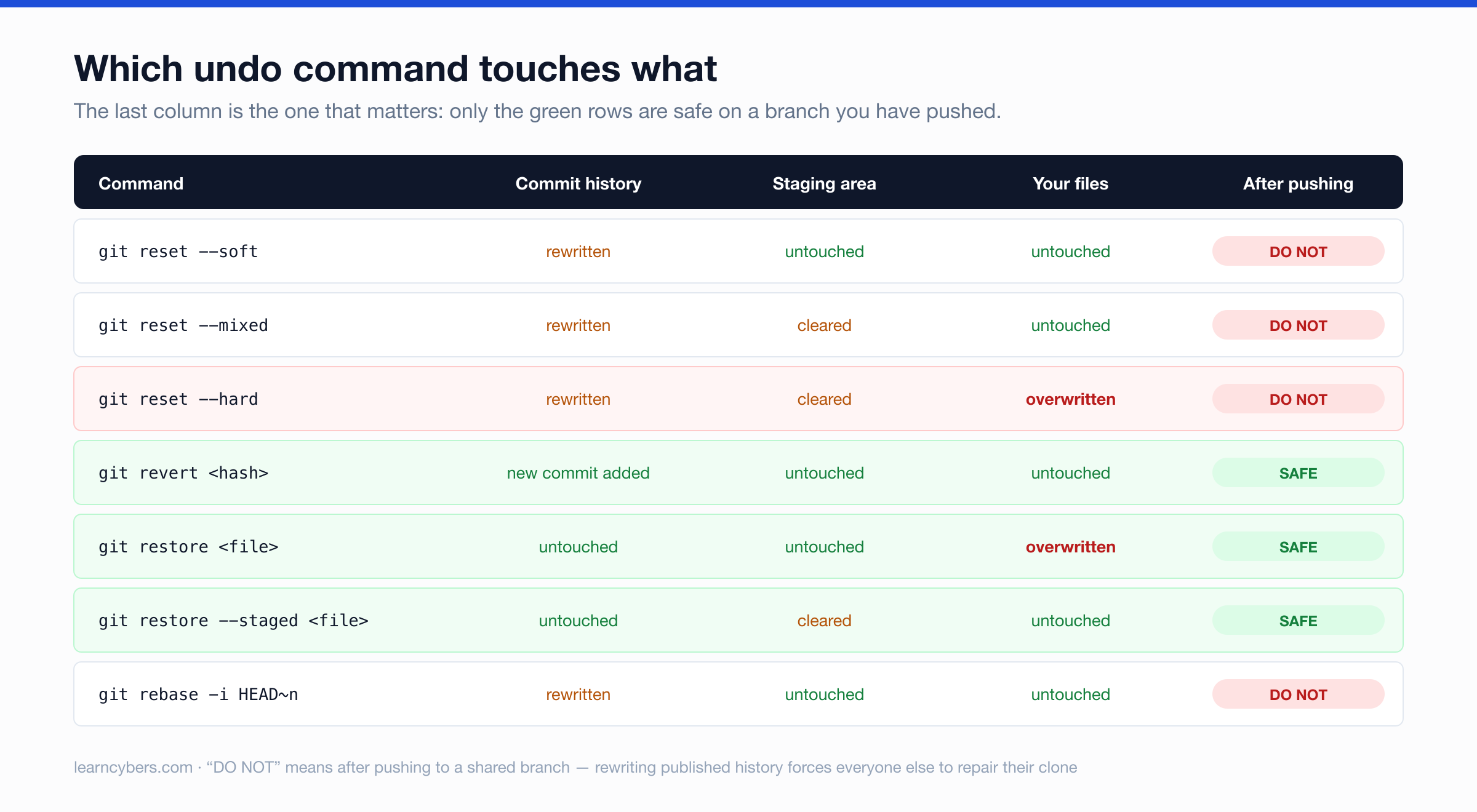
The last column is the one to read first. Everything that rewrites history is unsafe on a branch other people have pulled.
The safety net: reflog
git reflog records every position HEAD has occupied, including states no branch points at any more.
git reflog
# 8a3f2c1 HEAD@{0}: reset: moving to HEAD~3
# 1f4b9de HEAD@{1}: commit: add payment handler <- the work you just "lost"git reset --hard 1f4b9de # back to where you wereRetention is two numbers rather than the single "30 days" usually quoted. Entries still reachable from a branch expire after 90 days (gc.reflogExpire); entries that became unreachable — exactly the ones you need after a bad reset — expire after 30 (gc.reflogExpireUnreachable). So the practical recovery window for a botched reset is 30 days.
The reflog is local and per-clone. It does not travel with a push, and it cannot recover work that was never committed.
"I committed too early"
Not pushed, and you want to add a file or fix the message:
git add forgotten-file.js
git commit --amend --no-edit        # keep the message
git commit --amend                  # edit the message
Amend replaces the commit with a new one. The old hash disappears from the branch but remains in the reflog. Only before pushing.
"I want to undo the last commit"
git reset --soft HEAD~1    # changes stay staged  <- usually this one
git reset HEAD~1           # changes unstaged, still in your files
git reset --hard HEAD~1    # changes discarded
--soft puts you back at the moment before you typed git commit.
"I pushed a bad commit"
Do not reset. Revert:
git revert abc1234This creates a new commit applying the inverse changes. History stays intact, everyone's clone stays valid, and the record shows both the mistake and the correction — which is what an audit trail should show anyway.
Several commits at once, newest first:
git revert --no-commit abc1234 def5678
git commit -m "Revert broken payment changes"
"I reverted a merge and now the branch will not re-merge"
Reverting a merge commit needs -m 1 to say which parent to keep — normally the branch you merged into:
git revert -m 1 abc1234The trap comes later. Git now considers that feature branch already merged, so re-merging brings in nothing. When you are ready to land the work again, revert the revert:
git revert <hash-of-the-revert>"I committed to the wrong branch"
Not pushed. Move the commits across:
git log --oneline -3                 # note the hashes
git reset --hard HEAD~2              # remove them from this branch
git switch correct-branch
git cherry-pick abc1234 def5678      # apply them here
If you have not committed yet and are simply on the wrong branch, git stash, switch, git stash pop.
"I need one commit from another branch"
git cherry-pick abc1234              # one commit
git cherry-pick abc1234^..def5678    # an inclusive range
git cherry-pick -x abc1234           # record the original hash in the message
Cherry-pick creates a new commit with the same changes and a different hash. Expect two things: the same fix now exists twice in history, which produces a conflict when the branches eventually merge; and a commit that depends on earlier commits will not apply cleanly alone. The -x habit is worth forming — it leaves a trail back to the original.
"My history is a mess of WIP commits"
git rebase -i HEAD~5An editor opens listing five commits, oldest first. Change pick to:
squash— fold into the previous commit, combining both messagesfixup— fold in and discard this messagereword— keep the changes, edit the messageedit— stop here so you can amenddrop— remove entirely
Reorder the lines to reorder commits. If anything goes wrong:
git rebase --abortThat returns you exactly where you started, which makes interactive rebase far safer to experiment with than its reputation suggests. Unpushed commits only.
"I deleted a branch that had work on it"
git reflog | grep -i "branch-name"
git switch -c branch-name abc1234
If the branch name does not appear, search for the last commit message you remember. The commit survives in the object database until garbage collection removes it.
"I force-pushed over someone's work"
Recoverable, but only from a clone that still holds the old commits. Ask whoever's work it was to find the hash in their reflog, then restore it.
This is the accident worth preventing rather than fixing:
git push --force-with-leaseIdentical to --force except it refuses when the remote has moved since your last fetch. Use it always — it removes the worst category of Git accident at no cost.
"I committed a secret or a huge file"
Unpushed and in the last commit:
git rm --cached secrets.env
git commit --amend --no-edit
Deeper in history, use git filter-repo. If it was a credential, rotate it first and treat the history rewrite as cleanup rather than remediation — a pushed secret should be considered public from the moment it landed.
"I want one file back the way it was"
git restore path/to/file                    # discard uncommitted changes
git restore --staged path/to/file           # unstage, keep the changes
git restore --source=HEAD~3 path/to/file    # take an older version
git restore and git switch split what git checkout used to do into two commands with honest names. Stable since Git 2.23 and worth adopting — most confusion around checkout came from one command doing two unrelated jobs.
"Everything is broken and I want out"
git reset --hard origin/main   # match the remote exactly
git clean -nd                  # preview what would be deleted
git clean -fd                  # remove untracked files and directories
Always preview clean first. It deletes files Git has never seen, which means they are not in the reflog and cannot be recovered.
Quick reference
Situation | Command |
|---|---|
Bad commit, not pushed |
|
Bad commit, pushed |
|
Forgot a file |
|
Wrong branch |
|
Messy history |
|
One commit from elsewhere |
|
Deleted branch |
|
Lost commits after a reset |
|
Undo a merge |
|
Discard one file's changes |
|
Start over from the remote |
|
Common questions
What is the difference between git reset and git revert?
reset moves the branch pointer backwards, so the commit disappears from history. revert leaves history alone and adds a new commit that undoes the changes. Use reset on commits only you have; use revert on anything pushed.
What are the three stages of Git?
The working directory (files on disk as you edited them), the staging area or index (what the next commit will contain), and HEAD (the last commit on the branch). git add moves changes from the first to the second, git commit from the second to the third — and the three reset flags correspond exactly to how far back down that chain you want to go.
Should I use git rebase or git reset?
Different jobs. reset removes commits from the end of a branch. rebase rewrites a series of commits — reordering, squashing or editing them — while keeping the work. To undo the last commit, use reset; to tidy the last five into one, use rebase -i. Both rewrite history, so both are for unpushed commits only.
Is git reset --hard recoverable?
For committed work, yes — find the hash in git reflog and reset back to it, within roughly 30 days. For uncommitted changes, no. They were never recorded, so there is nothing to recover from.
How do I undo a git revert?
Revert the revert. git revert <hash-of-the-revert-commit> reapplies the original change as a new commit, which is the safe way to bring work back on a shared branch.
Two habits that prevent most of this
Commit before you experiment. Committed work is in the reflog and recoverable; uncommitted work is not. A throwaway commit costs nothing and can be squashed later.
Use --force-with-lease, never --force. One flag, and the worst shared-branch accident becomes impossible.
Test destructive commands on a scratch clone before running them on anything shared. Reflog expiry can be configured per repository, so confirm yours if you are relying on the recovery window.